16 Computer Desk Clipart: A Practical Guide to Choosing and Using Workspace Illustrations
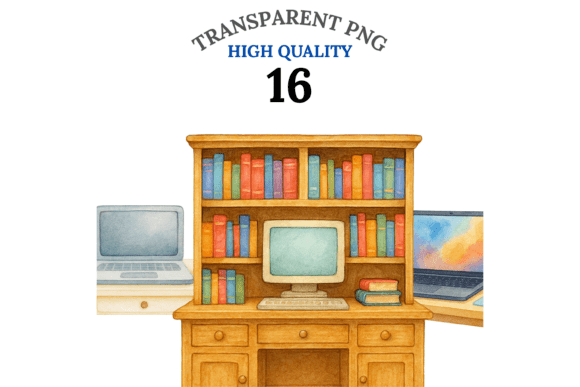
If you create educational materials, digital planners, or classroom decor, you have likely discovered how much a single illustration can transform a layout. The right computer desk clipart can turn a plain worksheet into an inviting activity or a boring planner page into something you actually want to use. The 16 Computer Desk Clipart bundle offers a collection that tries to cover that range — from vintage desktop setups to dual-monitor workstations, gaming stations, library desk scenes, and study desks with books and plants. But owning a set of illustrations is only half the battle. Knowing how to choose, apply, and edit them without frustration is what separates a polished project from one that feels off.
What the 16 Computer Desk Clipart Bundle Actually Includes
Before diving into common mistakes, it helps to understand what you are getting. This bundle contains 16 individual PNG files, each with a transparent background and a resolution of 216 DPI. That means you can place them directly into Canva, Procreate, Photoshop, or Cricut Design Space without spending time removing backgrounds. The themes span school desks, cozy workspace scenes, office setups, and tech-themed illustrations. A commercial license is included, so you can use these in unlimited end products — digital or physical — as long as you do not resell or redistribute the original PNG files.
For educators, small business owners, and content creators, this kind of bundle saves hours of searching for isolated illustrations. But many people grab a collection like this and then wonder why their results look inconsistent or unprofessional. The problem is rarely the clipart itself.
Mistake One: Choosing Clipart That Does Not Match Your Project's Audience
One of the most overlooked details when selecting computer desk clipart is audience fit. A library desk scene with stacked books and a vintage monitor may work beautifully for a high school literature worksheet, but it could feel out of place on a modern tech startup's social media graphic. Similarly, a gaming station with dual monitors and RGB lighting might be perfect for a digital planner aimed at young professionals but distracting in a classroom behavior chart.
The 16 Computer Desk Clipart bundle includes a mix of styles — some retro, some modern, some academic. The key is to preview each illustration against your actual project before committing. Pull the PNG files into your design software and see how they sit next to your text, icons, and other visuals. If a desk illustration feels too busy or too plain, swap it for another from the set. The variety in this collection exists precisely so you can match tone and context.
Mistake Two: Overlooking Resolution and Scaling Requirements
At 216 DPI, these files are well above the typical screen resolution of 72 DPI, but that does not mean you can scale them infinitely. A common error is dragging a clipart image into a large poster layout and stretching it beyond its native dimensions. Even with high-resolution originals, scaling a PNG too far introduces pixelation that cheapens the final product.
A better approach is to work at your intended output size from the start. If you are designing a letter-sized worksheet, place the desk clipart at a reasonable size — perhaps 3 to 5 inches wide — and avoid enlarging it beyond 150 percent. For larger projects like classroom posters or sublimation prints, consider using the illustration as a focal element rather than a full-page background. The transparent background of these files makes layering easy, so you can combine multiple elements without adding visual noise.
Mistake Three: Assuming All Transparent Backgrounds Behave the Same Way
Transparent PNGs are convenient, but they are not foolproof. Some design applications handle transparency differently depending on the file format version, color profile, or export settings. If you import a transparent PNG into Canva and notice a faint white halo around the edges, the issue is often a mismatch between the software's rendering engine and the file's embedded transparency data.
The 16 Computer Desk Clipart files are standard PNGs, which means they have full alpha channel transparency. To avoid edge artifacts, make sure your design software is set to support PNG transparency natively. In Canva, double-check that you are using the correct background layer. In Photoshop, confirm that your document color mode is set to RGB and that you are not accidentally flattening the image before export. A quick test with one file before importing all 16 can save you from redoing layouts later.
Mistake Four: Ignoring the Commercial License Terms
A commercial license is included with this bundle, which is excellent news for anyone selling products. But "commercial use" has specific boundaries that vary between clipart sets. With these files, you are allowed to use them in unlimited end products — both digital and physical — but you cannot resell or redistribute the original PNG files themselves. That means you cannot upload the raw clipart to a marketplace as a standalone item, nor can you share the files with colleagues who have not purchased their own copy.
This distinction matters more than many people realize. If you bundle the clipart with other design assets and sell the bundle as a clipart collection, you would be violating the license. However, using the illustrations in a teacher's worksheet pack, a set of planner stickers, or a tech-themed classroom poster is perfectly within your rights. Always read the license summary included with the download so that you know exactly what you can and cannot do. The bundle's collection ID DeskTime16 helps you reference the correct terms if you ever need to check.
Mistake Five: Using Clipart in Isolation Without Considering Cohesion
A single desk illustration can look excellent on its own, but when placed into a project with other visuals, the overall effect depends on consistency. If you use a cartoon-style gaming desk next to a realistic photograph of a plant, the mismatch can distract your audience. The 16 Computer Desk Clipart set has a consistent illustration style — clean linework, solid coloring, and a slightly playful but professional aesthetic — which reduces this risk. Even so, you should check that the colors in the clipart align with your project's palette. If your worksheet uses muted earth tones and the desk clipart has bright neon accents, the contrast may feel unintentional rather than deliberate.
One practical solution is to apply a subtle color overlay or use a filter in your editing software to desaturate or tint the clipart to match your theme. Since these are PNG files with transparent backgrounds, you can duplicate the layer, adjust the hue and saturation, and blend the result with the original. This keeps the integrity of the illustration while making it behave as part of your overall design.
What to Check Before You Download or Purchase
Before you commit to any clipart bundle, there are a few practical checks that can save you time and frustration later. First, verify the file format. These are PNG files, which work across almost every platform, but if you require SVG or EPS for certain Cricut projects, you may need to convert them. Second, confirm the total number of unique illustrations. The 16 Computer Desk Clipart bundle offers 16 distinct scenes, but some bundles advertise multiple files that are merely color variations of the same design — that is not the case here.
Third, consider the themes you actually need. If you primarily create content for elementary school classrooms, the library desk and study desk illustrations will be more useful than the dual-monitor gaming setup. Conversely, if you design resources for coding bootcamps or tech courses, the modern workstation and vintage desktop scenes give you flexibility. Knowing your use cases ahead of time helps you evaluate whether this collection covers enough ground for your typical projects.
Practical Examples of Better Approaches
Imagine you are designing a digital planner for remote workers. You want a weekly spread that includes a to-do list, a habit tracker, and a motivational quote. Placing a dual-monitor desk clipart in the upper corner ties the page to the theme of productivity and technology. Because the file has a transparent background, you can layer it behind a subtle gradient without worrying about rectangular edges. This creates a polished, integrated look that feels custom-made.
Now consider an educator preparing a set of "Computer Lab Rules" posters for a middle school classroom. A vintage desktop illustration might feel nostalgic to adults, but students today may not connect with it. Instead, the study desk with books and a plant sends a calmer, more focused message. Pair that with clear typography and a neutral background, and the poster becomes functional without being visually noisy. Testing two or three clipart options against the same layout helps you see which one supports your message best.
How to Avoid Wasting Time on Edits
Many creators spend hours editing clipart that could have been used directly. The transparent background in this bundle eliminates the most time-consuming task — background removal — but you still need to manage sizing, positioning, and color integration. A simple workflow is to import all 16 files into a single folder within your design software, create a test document at your target dimensions, and place each clipart option on a separate layer. Then toggle visibility to quickly compare how each one reads at the size you need. This lets you make confident decisions before you start building the rest of your layout.
If you plan to use these illustrations across multiple products, consider creating a template file with pre-sized placeholders for the clipart. This way, you can swap in different desk scenes without adjusting dimensions each time. For small businesses producing a series of tech-themed printables, this approach reduces production time and keeps branding consistent.
Why This Bundle Works for a Range of Creators
The 16 Computer Desk Clipart collection is versatile enough for educators, freelancers, bloggers, and hobbyists because it covers common workspace scenarios without leaning too heavily into one style. The inclusion of school desks, gaming stations, and library scenes means you can use the same set for classroom materials, social media content, product listings, and personal projects. The commercial license removes the worry about usage limits, and the transparent PNG format works with the tools most creators already own.
That said, no clipart set is perfect for every situation. If your projects require photorealistic imagery or highly detailed technical illustrations, a vector-based approach might serve you better. But for the majority of educational and digital planning use cases, these illustrations provide a reliable, attractive foundation that saves you from drawing your own assets or searching through endless free stock image libraries.
Final Practical Advice Before You Start Designing
Open the downloaded folder and preview all 16 PNGs in your file browser to familiarize yourself with the range. Pick the three that feel most relevant to your current project and import them first. Resize each one to the approximate scale you need, and check how they hold up at that size. If you plan to print, test a small section on paper to confirm that the resolution reproduces cleanly. For digital use, view the file at 100 percent zoom on your screen to check for any compression artifacts.
Keep the license information accessible, especially if you sell products regularly. Knowing that you have Commercial License Included with the DeskTime16 collection gives you confidence when you upload your finished work to a marketplace or hand it off to a client. And if you ever need to recreate a project with a different clipart style, you already know the workflow — choose for audience fit, respect resolution limits, test before committing, and edit only when necessary.
The 16 Computer Desk Clipart bundle can be a practical addition to your design toolkit, but only if you use it with intention. Understand what you are buying, check its fit for your typical projects, and apply the same careful decisions you would with any other asset. That simple discipline will help your creative work look cohesive, professional, and genuinely helpful to the people who use it.